Cast
The Cast feature allows you to cast the contents, such as Photo, Video, Music, Live Channel etc., from your mobile devices to the TV.
Setup
Please ensure the Viyo app on your phone is connected to the TV, if the device connection button at the top center displays your TV name and is green, as shown in the below figure, it means the TV is connected.
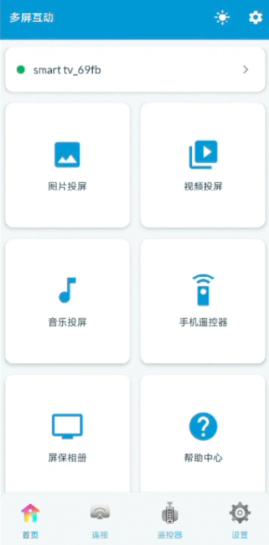
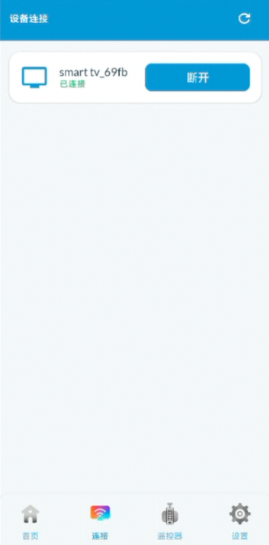
Otherwise, click the button to enter the Connection page, scan and connect to your TV, you can refresh the page by clicking the Refresh icon on the top row.
Note:
- Please ensure your phone and the casting device are on the same Wi-Fi network.
- Casting will not wake the TV if it's in sleep mode. Make sure your TV is powered on and awake before attempting to connect or start casting.
Photo Casting
To cast photos to your TV, tap the Photo Cast icon. A dialog will appear for you to select one or more images from your Photos or Albums. After selecting, tap the Add button at the bottom to begin casting.
The app will display the selected photos on your TV and automatically switch to the next photo at a set interval. Tap Stop casting to end the session.
Tips:
You can change the photo switch interval from Setting > Photo Cast > Auto Cast Next Photo, allowing you to select among 2, 4, 8, 10, 15 seconds.
Video Casting
Steps for Video Casting are similiar, only one video can be selected at a time.
The TV may need some time to retrieve the video file from your phone.
Music Casting
Steps for Music Casting are similiar, only one music can be selected at a time.