Screensaver Album Management
You can use the Viyo app to manage albums in the TV screensaver software, making it convenient to upload photos from your phone to the TV for display in the TV screensaver.
Launch TV Screensaver Settings Interface
When managing screensaver albums, it is recommended that you open the screensaver software settings interface on the TV. You can enter the interface shown on the right side of the figure below through the screensaver album entry on the Viyo homepage, then click the "Open screensaver settings on TV" button to open the settings interface shown on the left side of the figure below on the TV.
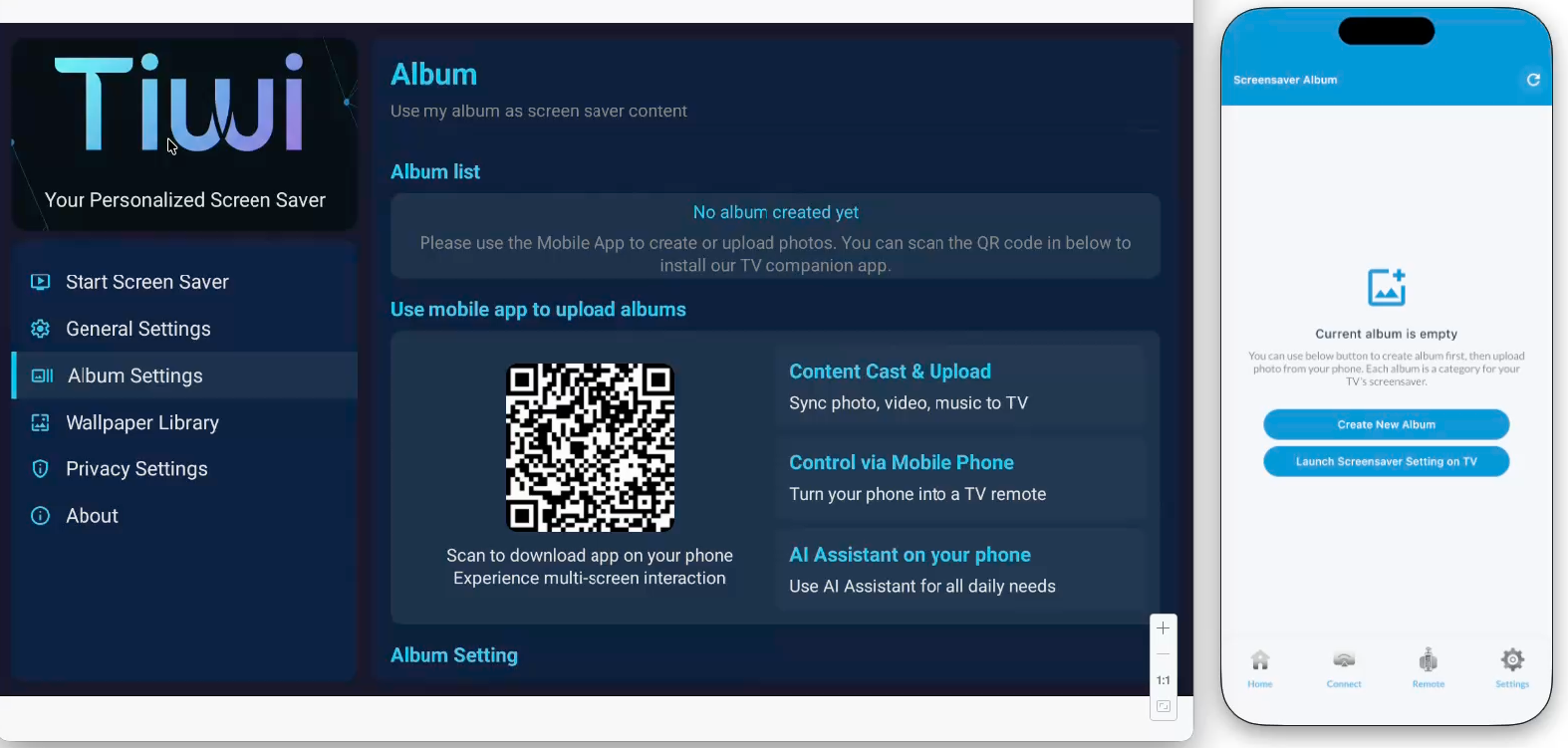
Create New Album
Click "Create New Album" on the Viyo interface, then enter the name of the new album in the pop-up input dialog to create a new album on the TV. As shown in the figure below, we have created a new album named "Demo1".
Upload Photos from Phone
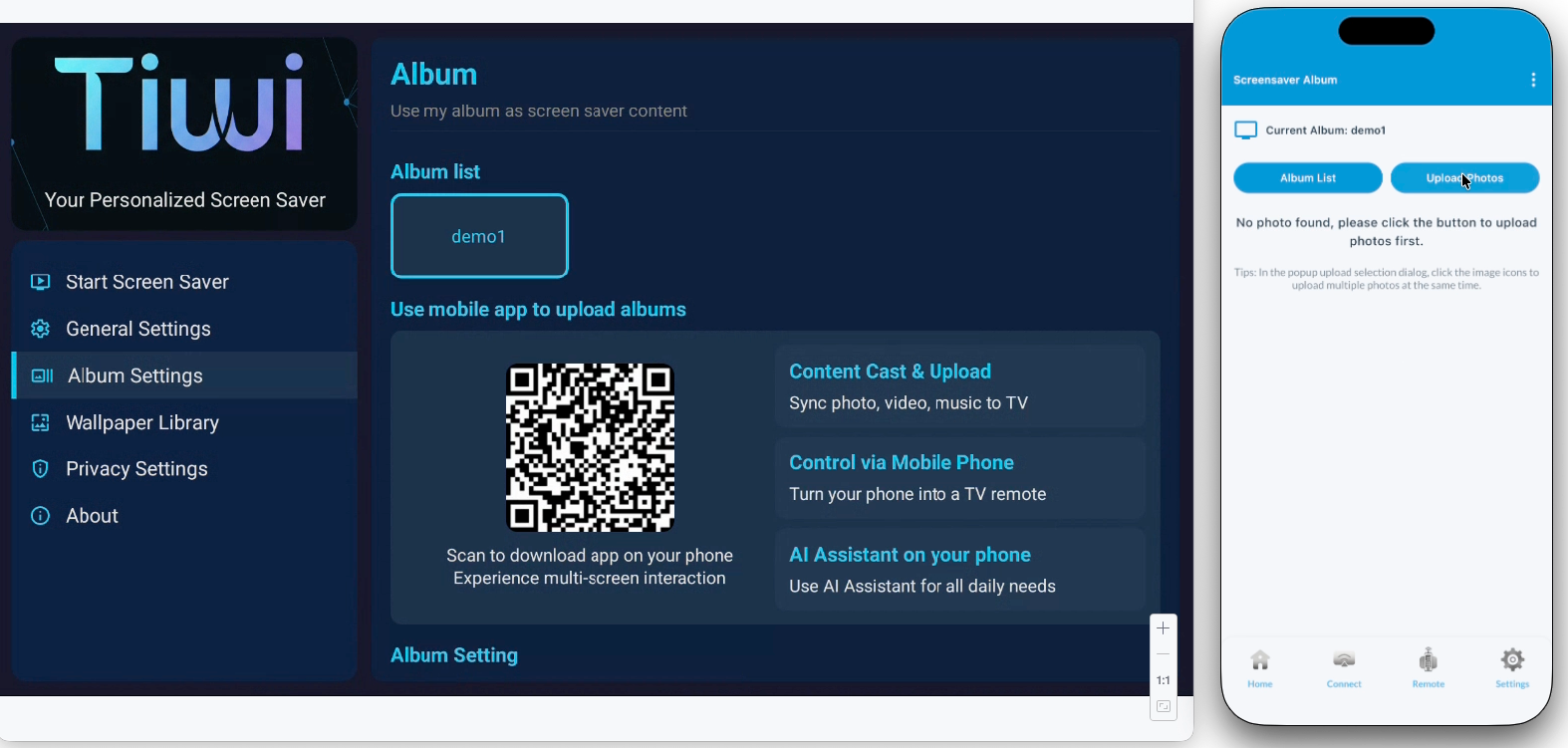
After creating a new album, click that new album button to enter the album for album file management, as well as delete or rename operations.
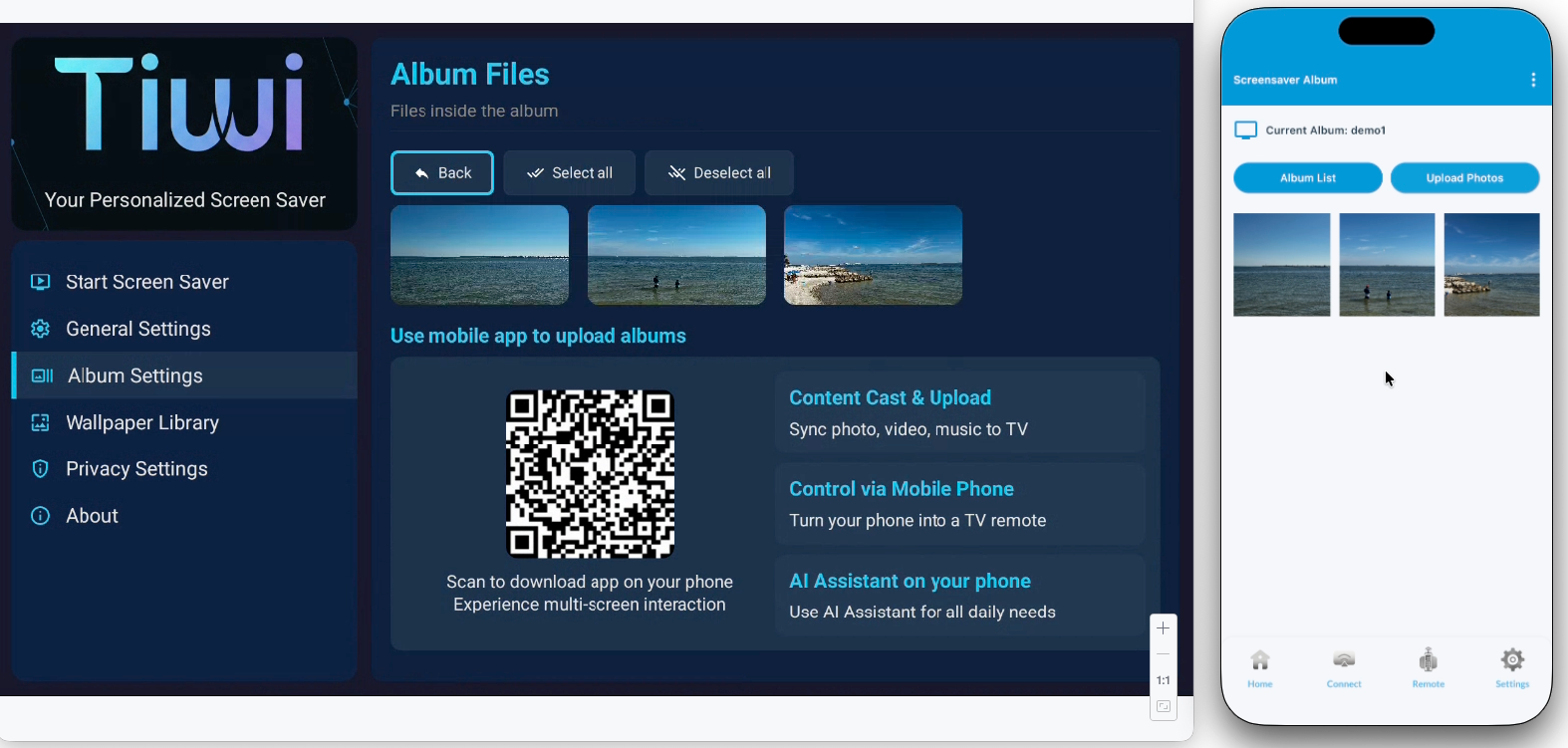
To upload photos, click the "Upload Images" button on the Viyo interface, then select the photos you want to upload in the pop-up photo selection dialog. You can select and upload multiple files at once, then click the add button on the interface, and the Viyo app will start uploading files to the corresponding album directory on the TV. As shown in the figure below, you can see that the photos on your phone and TV are synchronized.
Delete Photos
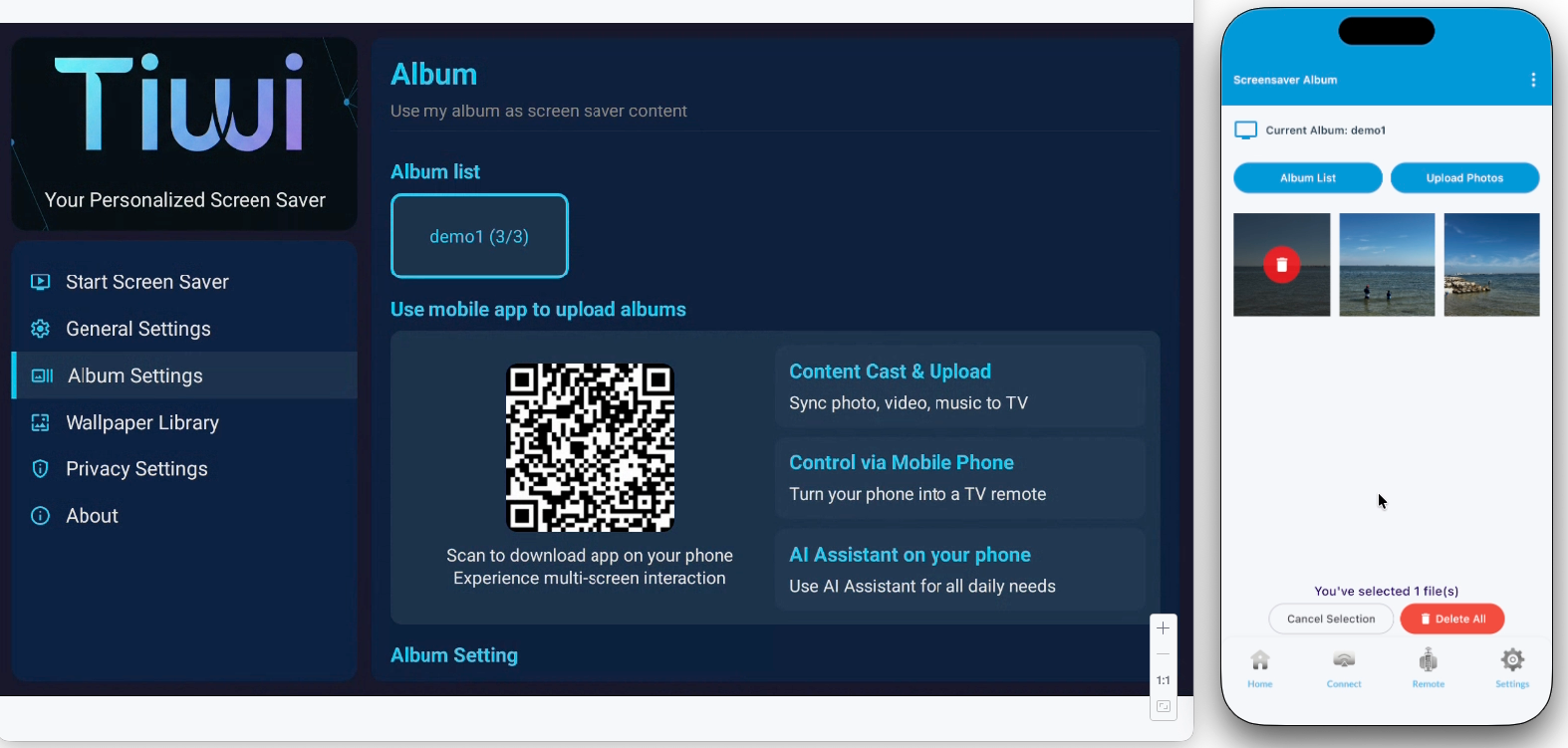
To delete one or more photos, simply click on the photos you want to delete in the specified album directory on the Viyo app. At this time, a delete icon will appear on the corresponding photos. You can select multiple photos at once, then click the "Delete All" button at the bottom of the interface, and Viyo will delete the specified photos from the TV.
Rename Album
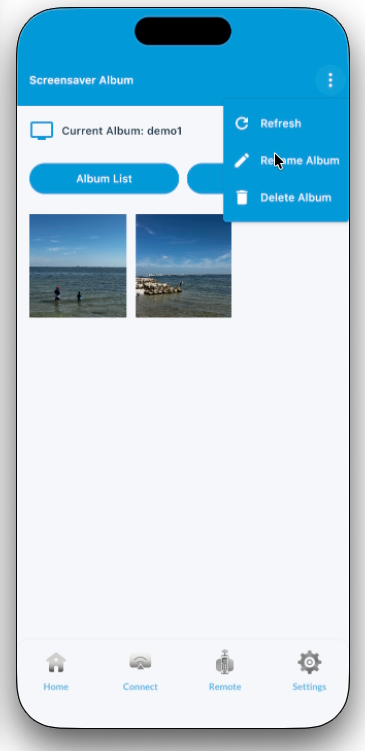
To rename an album, simply click the button in the upper right corner, select "Rename Album" from the pop-up dropdown menu, then enter the new name in the pop-up input box.
Delete Album
To delete an album, simply click the button in the upper right corner, select "Delete This Album" from the pop-up dropdown menu, then confirm in the pop-up confirmation box.
Common Issues
Note:
- Uploading photos to the TV will occupy the TV's storage space. Please decide how many photos to upload based on your TV's actual storage space to avoid uploading too many photos that cause insufficient TV memory and affect the TV's operation.
Unable to Connect:
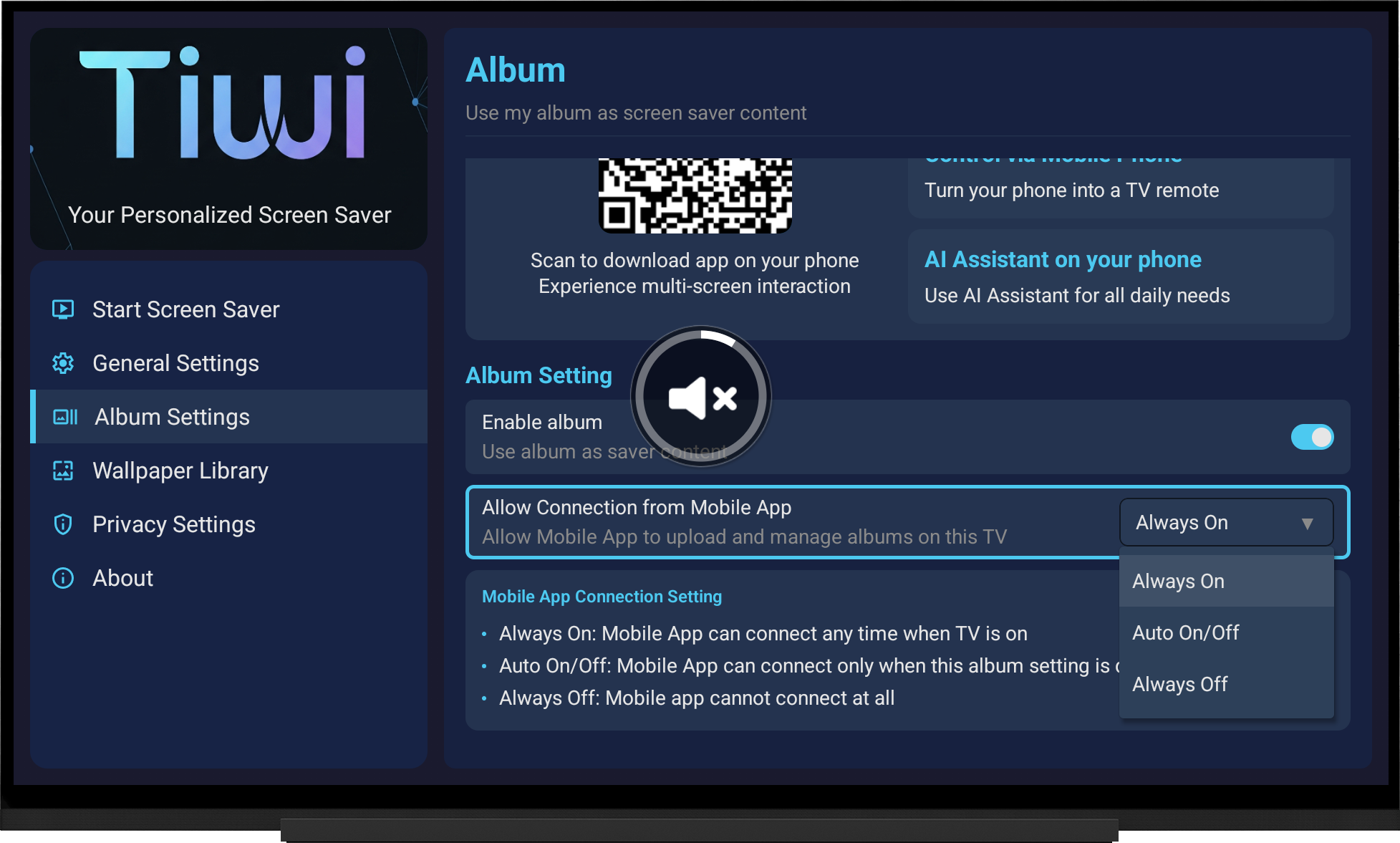
If Viyo shows that it cannot connect to the TV screensaver, please open the album settings section under the TV screensaver, then move the focus to the bottom of the right interface, and from "Allow Mobile App Connection", confirm that this setting cannot be the last option, which is the "Always Off" option. You can try switching between these modes to reopen the connection.