Remote Control Features
You can use the Viyo app to remotely control your TV through voice or button commands, allowing you to put aside the physical remote control and interact with your TV easily and smoothly.
You can click the mode switch button on the Viyo app remote control interface to switch to the following 4 different modes:
- M1: Direction key mode
- M2: Number key mode
- M3: Text input mode, which quickly sends text to the input box at the current focus position on the TV.
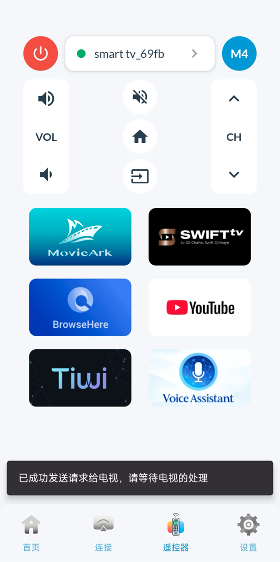
- M4: Application shortcut mode, which quickly launches specified applications on the TV.
Connection
Before starting to use voice commands, please ensure that the Viyo app on your phone is connected to the TV, as shown in the figure below:
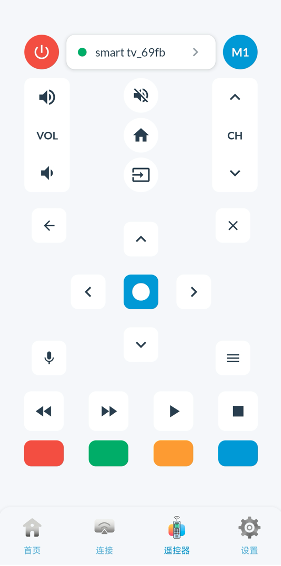
If the device connection button at the top center displays your TV name and is green, it means the TV is connected. Otherwise, please click that button to enter the Connection page, scan and connect to your TV.
Note: Please check the following requirements before setting up the connection:
- Your phone/Tablet and TV must be connected to the same Wi-Fi network.
- Your TV must be in a running state.
Voice Commands
The Viyo assistant can intelligently parse your voice commands and execute operations on the TV.
Simply click the "Voice" button in the figure, then speak what you want to operate in the pop-up dialog. For specific functional operation commands, please refer to the next section "Voice Command Examples".
You can also use the Viyo assistant for voice Q&A or other intelligent agent operations, allowing the TV's voice assistant to perform corresponding intelligent operations. For example, you can say "draw a beautiful picture of swimming at the beach", and the Viyo assistant will call up the TV's voice assistant to draw a picture for you.
When using voice command for the first time, the system will display a permission request dialog. Please grant voice permission accordingly.
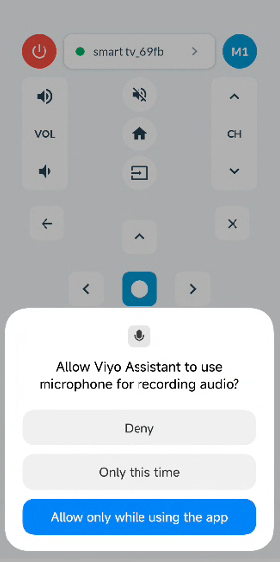
- After granting permission, press the "Voice" button again and speak your command。
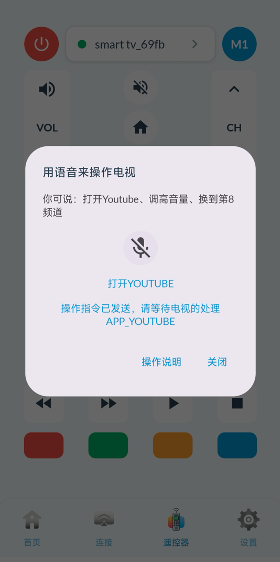
Note:
The Viyo assistant will attempt to correct certain errors. For example, if voice recognition mistakenly identifies "OPEN NETFLIX" as "OPEN NECKLACE", the Viyo assistant will automatically correct it to "OPEN NETFLIX".
Voice Command Examples
The following are examples of voice commands you can use to interact with your TV:
| Function | Examples |
|---|---|
| Open Home | "Please open home", "Enter home", "Launch home" |
| Exit Home | "Exit home", "Close home", "Leave home" |
| Increase Volume | "Turn up volume", "Increase sound", "Make it louder" |
| Increase Volume (specified value) | "Volume up 10", "Increase volume 10", "Raise volume 10 levels" |
| Decrease Volume | "Turn down volume", "Lower sound", "Make it quieter" |
| Decrease Volume (specified value) | "Volume down 5", "Decrease volume 5", "Lower volume 5 levels" |
| Mute | "Mute", "Turn off sound", "Mute volume" |
| Power Off | "Turn off device", "Power off", "Shut down" |
| Play | "Start playing", "Continue playing", "Play content" |
| Pause | "Pause playback", "Temporarily stop", "Pause for a moment" |
| Stop | "Stop playing", "End playback", "Cancel playback" |
| Next | "Play next", "Switch to next track", "Play next one" |
| Previous | "Play previous", "Switch to previous track", "Play previous one" |
| Rewind | "Rewind video", "Jump backward", "Play backward" |
| Fast Forward | "Fast forward video", "Jump forward", "Fast forward playback" |
| Previous Channel | "Next channel", "Increase channel number", "Channel up" |
| Next Channel | "Previous channel", "Decrease channel number", "Channel down" |
| Switch Input Source | "Switch to HDMI1", "Select HDMI1 input", "Change input to HDMI1", see details below |
| Open Application | "Launch YouTube", "Open YouTube app", "Enter YouTube", see details below |
Notes:
Supported applications depend on the applications installed on your TV. Viyo can launch the following applications:
- YouTube, Netflix, Toongoggles, Miracast, Amazon Prime Video, Twitter, Pandora, Vudu, AccuWeather
The Viyo app can intelligently recognize based on application functionality. For example:
- If you say "Start screen mirroring", it can automatically open the Miracast app for you.
- If you say "Amazon Prime Video", "Amazon Prime", or even "Open Prime", it can launch the Amazon Prime Video app for you.
Parameters in "Switch Input Source" depend on your TV's configuration:
- Supported input sources include: HDMI1, HDMI2, HDMI3, Cable, Air, DVB-C, DVB-T, DVB-S.
- You can use the following commands to switch input sources. For example: "Switch to antenna TV" means switching to "Air" mode, "Select cable digital TV" equals switching to "DVB-C", "Select satellite TV" means switching to "DVB-S" mode.
Application Shortcut Mode
When you click the mode switch button at the top of the screen to switch to M4 mode, the following application list will be displayed. Click the corresponding application icon to open that application on the TV.
Note:
- The launch speed of each application on the TV is determined by the application itself. The Viyo assistant only provides quick launch functionality.
- The TV may take a few seconds to complete the application launch. The Viyo assistant will not send new launch commands to the TV within 10 seconds after you click.
- Please do not use the Viyo assistant to launch multiple applications back and forth in a short time to avoid processing congestion on the TV.